Selling and access
Connecting ThriveCart
Enter the secret word, add a webhook at ThriveCart, map products, bumps and upsells in the course, check a test purchase.
Setting up the connection
Under “Sales” the ThriveCart guide walks you through every step, with the field names as ThriveCart shows them. If ThriveCart is not listed there yet, click “Connect ThriveCart” below the providers. Best keep ThriveCart open in a second tab.
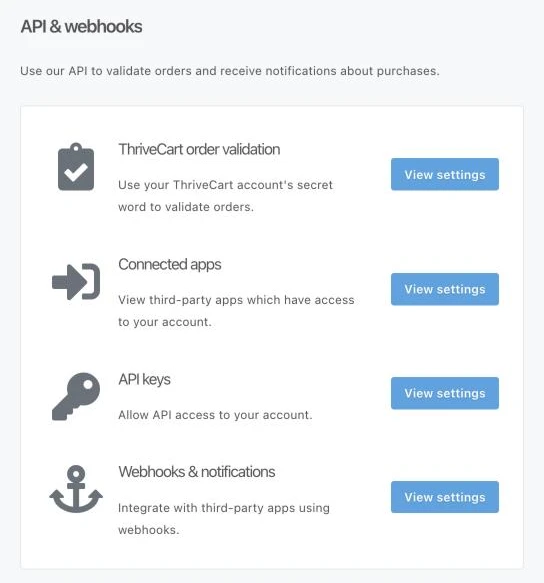
- Sign in to ThriveCart → “Account” → “Settings” → “API & webhooks”.
- Click “View settings” at “ThriveCart order validation” and copy the “Secret word”. Paste it into the “Secret word” field in CourseKit and save.
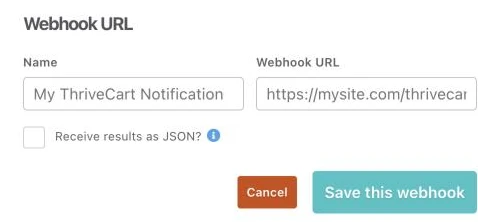
- Click “View settings” at “Webhooks & notifications” and add a webhook: “Name” CourseKit, “Webhook URL” the address from CourseKit (copy button). “Save this webhook”.
ThriveCart sends the secret word with every message. CourseKit only unlocks when it matches. It is stored encrypted; afterwards CourseKit only shows its last characters.
Note: ThriveCart sends abandoned carts and affiliate commissions to the same address. CourseKit accepts them but does not store them – they have nothing to do with access to a course.
Mapping products, bumps and upsells
In CourseKit open the course → “Sales” and enter the number of the ThriveCart product, for example 12. You find it at ThriveCart under “Products” after the product name (“My course -- 12”). An order can have several parts – each unlocks its own course:
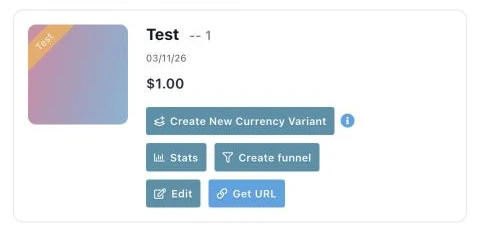
- The main product: its number, for example 12 (CourseKit stores it as product-12).
- A bump: bump- and the number of the product it belongs to, for example bump-12.
- An upsell or downsell: upsell-3 or downsell-3.
For a subscription every further payment extends access by the product's duration. If the subscription is cancelled or paused, access runs until the end of the paid period. If a rebill fails, CourseKit gives 7 days of grace. A refund locks access to the refunded product at once – access you granted by hand is left alone.
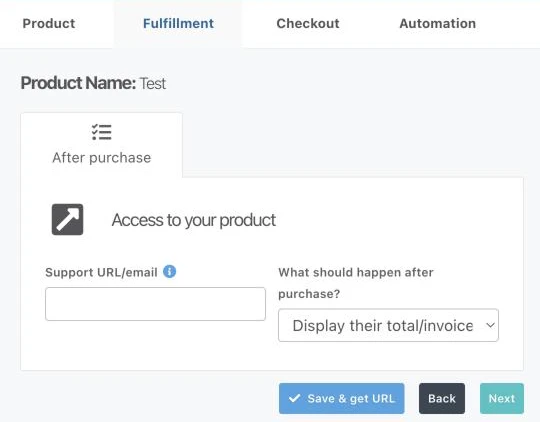
Where the buyer goes after paying is set in ThriveCart on the product under “Fulfillment” → “What should happen after purchase?”. Best is a redirect to the sign-in page of your member area – her access is already there, and the sign-in link is on its way.
Checking a test purchase and purchases
Set the “Product status” of your product at ThriveCart to “Test mode” and buy it once. A test purchase is marked “Test” in CourseKit and does not count towards your plan. Under “Sales” in the “Purchases” tab you see every report from ThriveCart with its status; resolve “unmapped” with “Map and unlock”.
Note: Set the “Product status” back to “Live” afterwards – otherwise nobody can really buy. ThriveCart does not list test purchases under “Transactions”; CourseKit does, under “Purchases”.